About EME Noise Mapper
Most EME stations operate with some degree of obstruction around their antennas during at least part of each Moon pass. Only a few are fortunate enough to have a completely clear horizon from moonrise to moonset. For the rest, nearby houses, trees, fences, or other antennas limit usable Moon paths. Some more adventurous EME stations operate from constrained locations such as balconies, patios, driveways, or other small urban spaces. Under these conditions, knowing when the Moon is accessible and when the noise floor is lowest becomes critical to making successful contacts and operating efficiently.
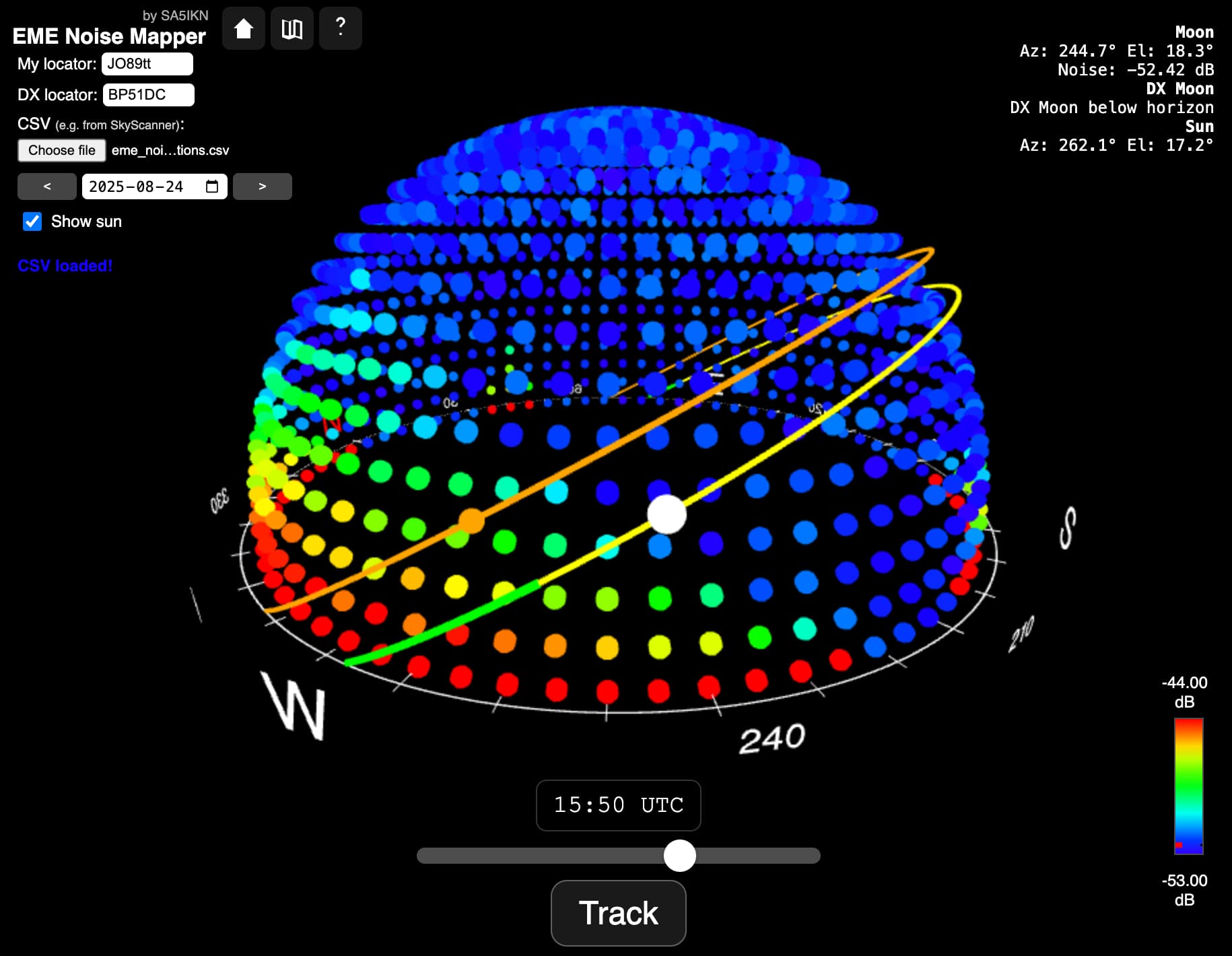
EME Noise Mapper is a web application for visualising the radio noise environment around an EME antenna site in three dimensions and helping identify periods when obstructions are minimal. It supports both manual planning and real-time operation. EME Noise Mapper overlays the trajectories of the Moon and Sun onto the sky noise map and provides integrated visual guides to help identify common Moon windows with minimal noise contribution from the antenna’s surroundings.
EME Noise Mapper works equally well on desktop computers, tablets, and mobile devices, making it convenient for both detailed station planning and quick checks while on the move.
Note that EME Noise Mapper does NOT perform noise scans or control EME antennas. It uses sky noise maps generated by other software and imported in CSV format. The application automatically preserves user data between sessions (stored locally), so there is no need to load a new file each time the app is accessed.
Prerequisites and Requirements
Important: EME Noise Mapper does not perform noise scans. It requires a CSV file containing a sky noise map generated by external software of your choice. One example of such software is SkyScanner by OZ9AAR.
The CSV file may use either comma (,) or semicolon (;) as the field separator. The file must contain at least the following columns:
- Azimuth
- Elevation
- Noise
Additional columns may be present in the file but are ignored by the application.
Key Features
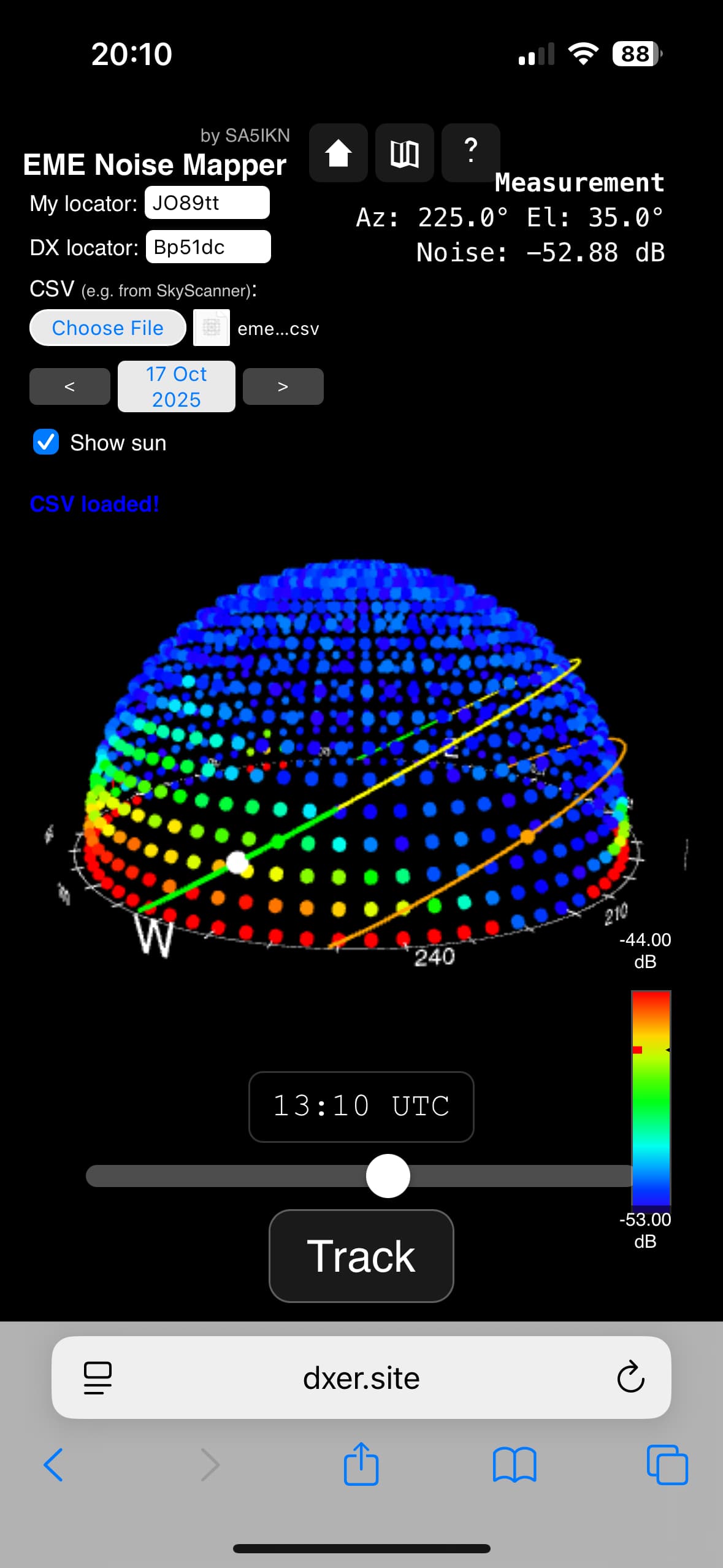
- Interactive 3D noise map: Visualises the sky noise environment as seen from the EME antenna using a 3D dome representation. Users can zoom, pan, rotate, and switch between an external view and an antenna-centred view from inside the dome.
- Moon and Sun trajectories: Displays the three-dimensional paths of the Moon and Sun (if enabled) across the sky noise map.
- EME planning tools: Enter the QTH locator of a DX station to highlight sections of the trajectory that correspond to common Moon windows using distinct colours.
- Real-time tracking mode: Continuously updates the positions of the Moon and Sun on the noise map.
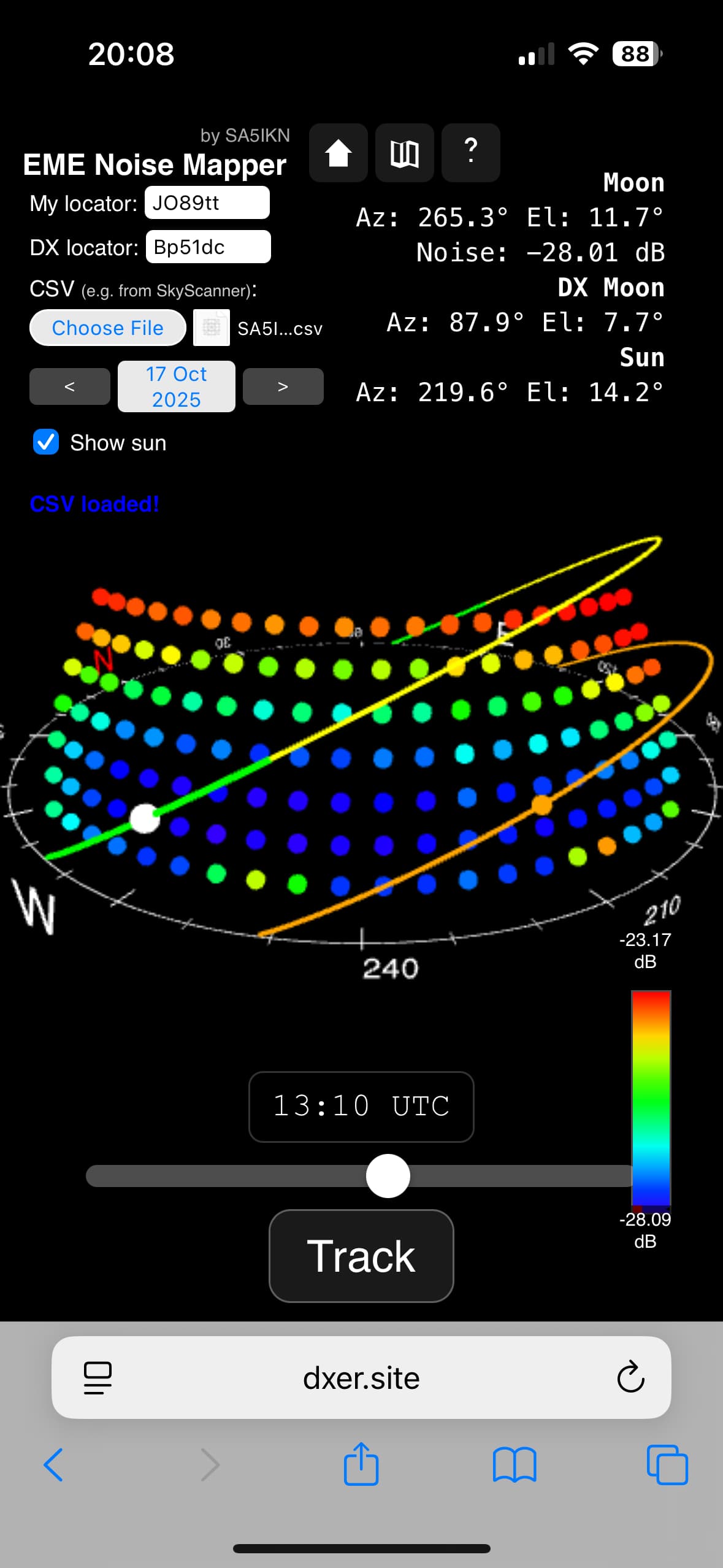
- Moon, Sun, and noise data: Displays key parameters including Moon azimuth and elevation at both the local and DX station, as well as the interpolated background noise level.
Quick Start
Workflow Overview
To get started follow these steps:
Initial Load
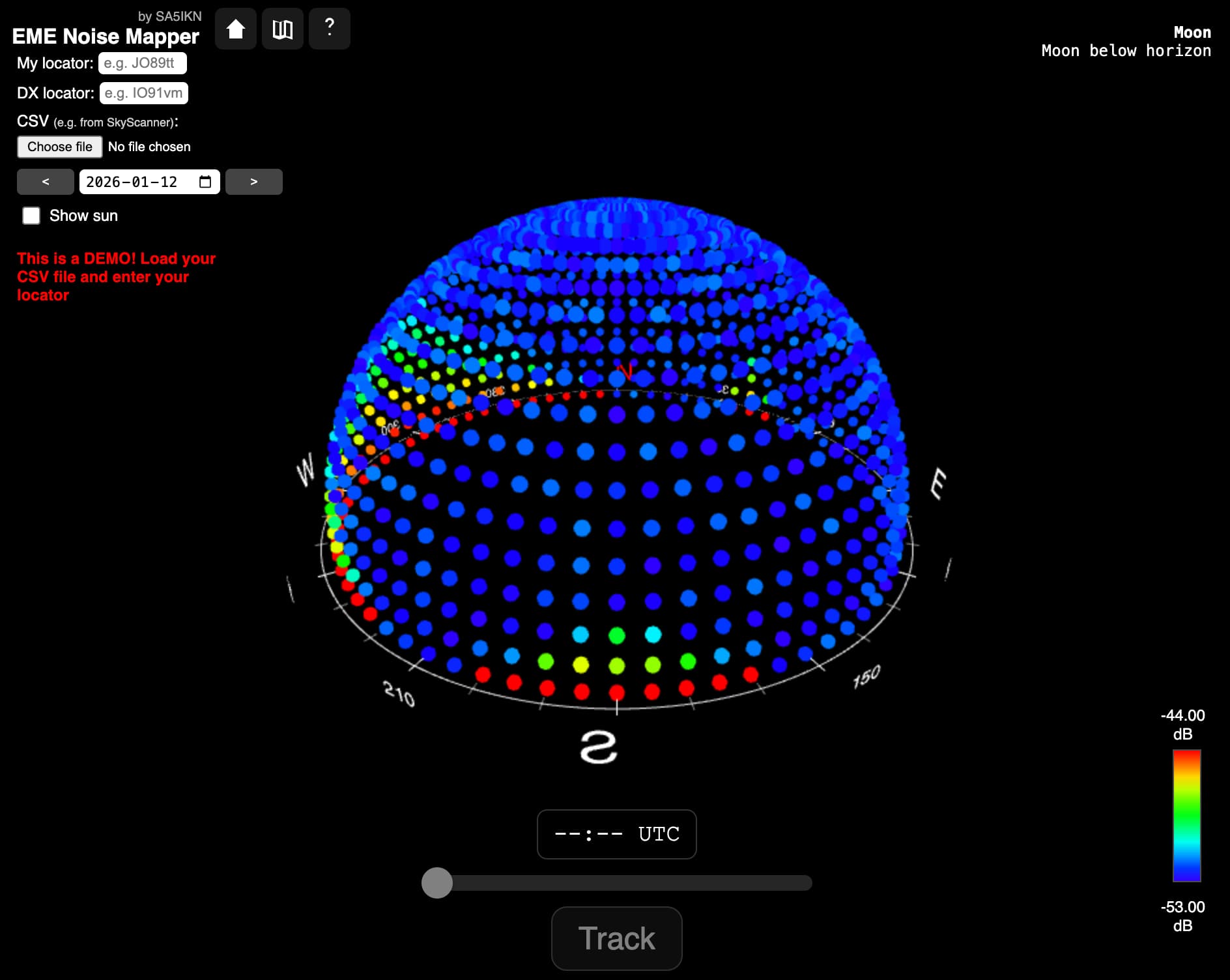
Upon initial load, EME Noise Mapper displays a simulated noise dome for demonstration purposes only. A red message is shown stating: "This is a DEMO! Load your CSV file and enter your locator." The displayed map does not represent real noise data.
To begin using the application, enter your 6-character QTH locator and import your sky noise map by clicking Choose File and selecting your CSV file. If a locator has been entered but no noise map has yet been loaded, the message changes to: "This is a DEMO! Load your CSV file." When the CSV file has been sucessfully loaded you will see a message "CSV Loaded".
Operation
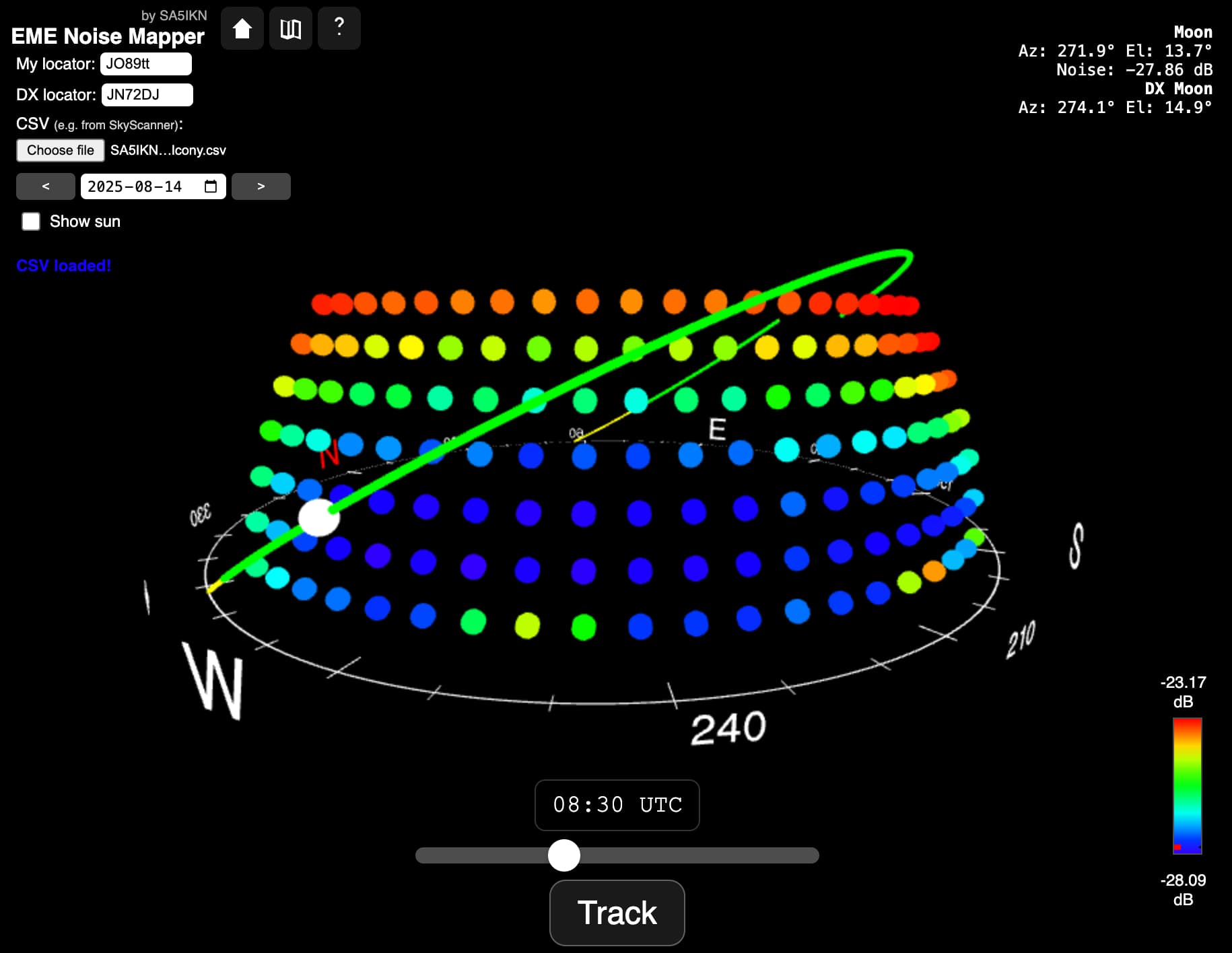
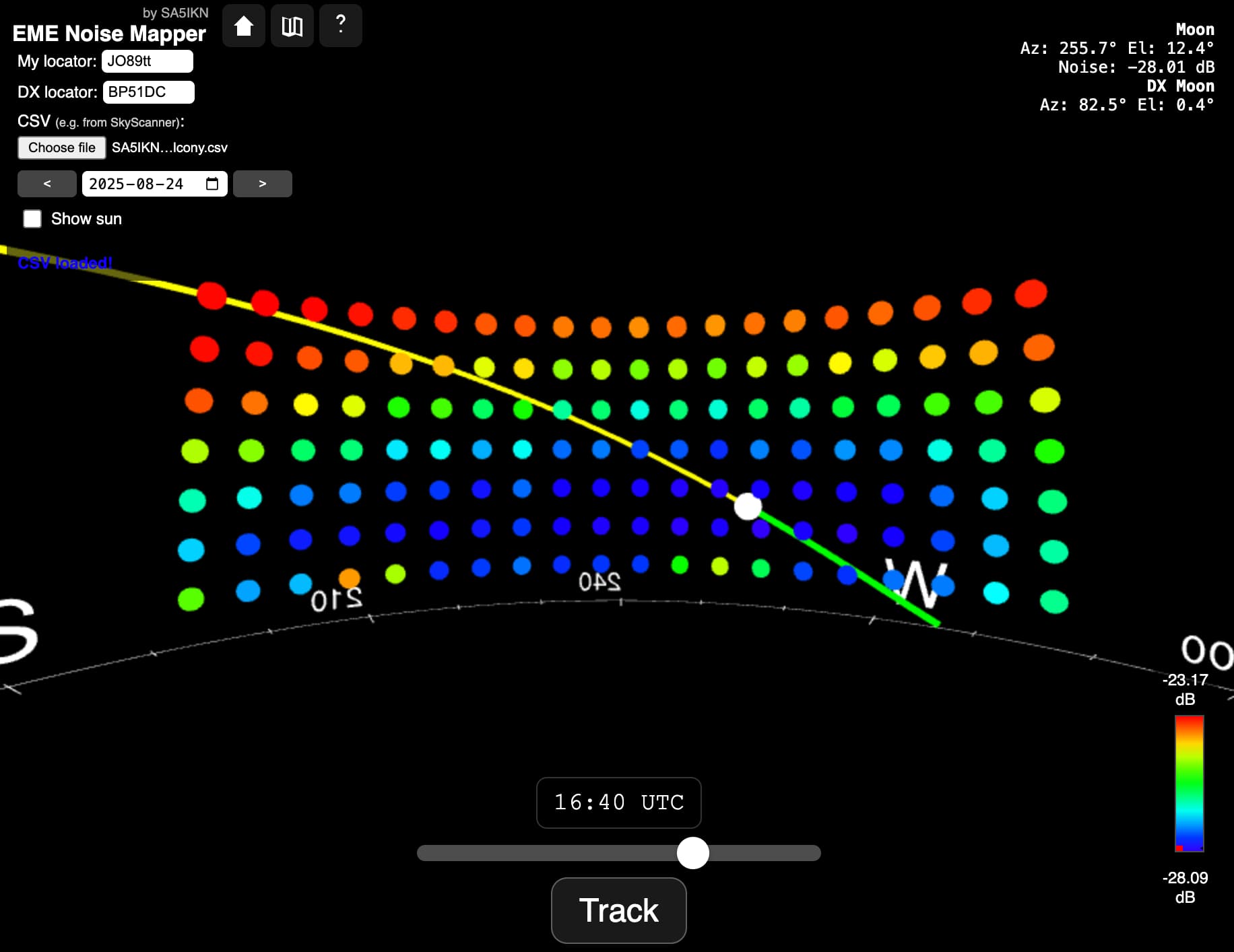
Once both a valid My Locator and DX Locator have been entered, EME Noise Mapper displays the Moon trajectory and the current Moon position for the selected date. The segment of the trajectory corresponding to the common Moon window between the two stations is highlighted in green.
Date and Time Control
Use the date picker or the navigation arrows to change the selected day. The time slider at the bottom of the screen allows you to adjust the time of day and observe how the Moon position and noise level change accordingly.
Moon and Sun Display
If the Show Sun option is enabled, the Sun trajectory and current Sun position are displayed alongside the Moon. This helps identify periods when solar noise may affect operation.
Noise Level Visualisation
A colour scale legend for noise levels is displayed in the bottom-right corner of the screen. An indicator arrow shows the current interpolated background noise level at the Moon’s position.
Real-Time Information Panel
The information panel in the top-right corner displays key operational parameters, including:
- Moon azimuth and elevation at your station
- Moon azimuth and elevation at the DX station
- Sun azimuth and elevation at your station (when enabled)
- Interpolated noise level at the Moon’s position
Realtime Tracking Mode
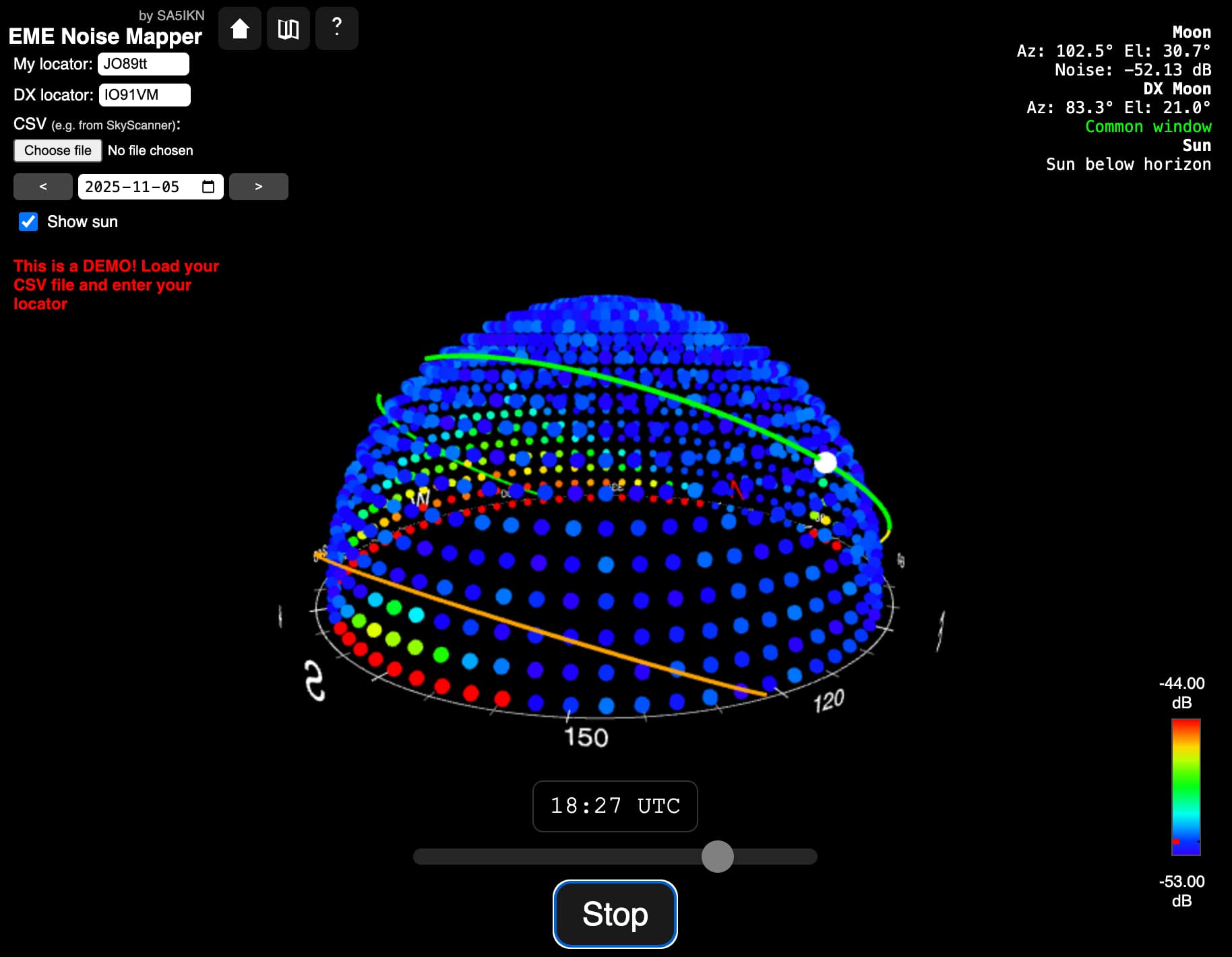
EME Noise Mapper includes a real-time tracking mode. Click the Track button to enable continuous updates of the Moon’s position and all associated metrics, including the interpolated noise level.
The Track button is only available when at least one tracked object is above the horizon. If the Moon is below the horizon, the button will be disabled. However, if the Show Sun option is enabled and the Sun is above the horizon, real-time tracking can still be activated even when the Moon is below the horizon.
Use with EME Observer
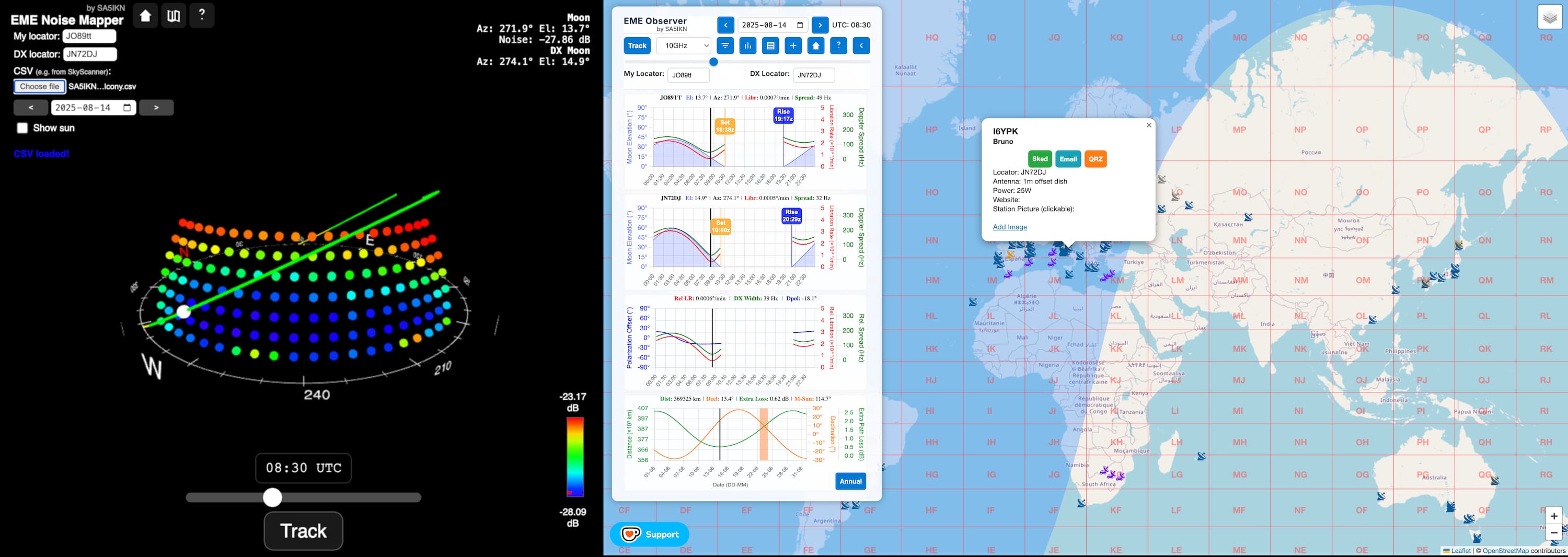
EME Noise Mapper is especially convenient to use alongside EME Observer, a modern interactive EME planner and station map. Used together, the two tools complement each other by combining EME conditions analysis and scheduling insight from EME Observer with site-specific noise and obstruction analysis from EME Noise Mapper. Modern browsers support split-screen or side-by-side viewing, making it easy to use both web applications simultaneously.
Mobile experience
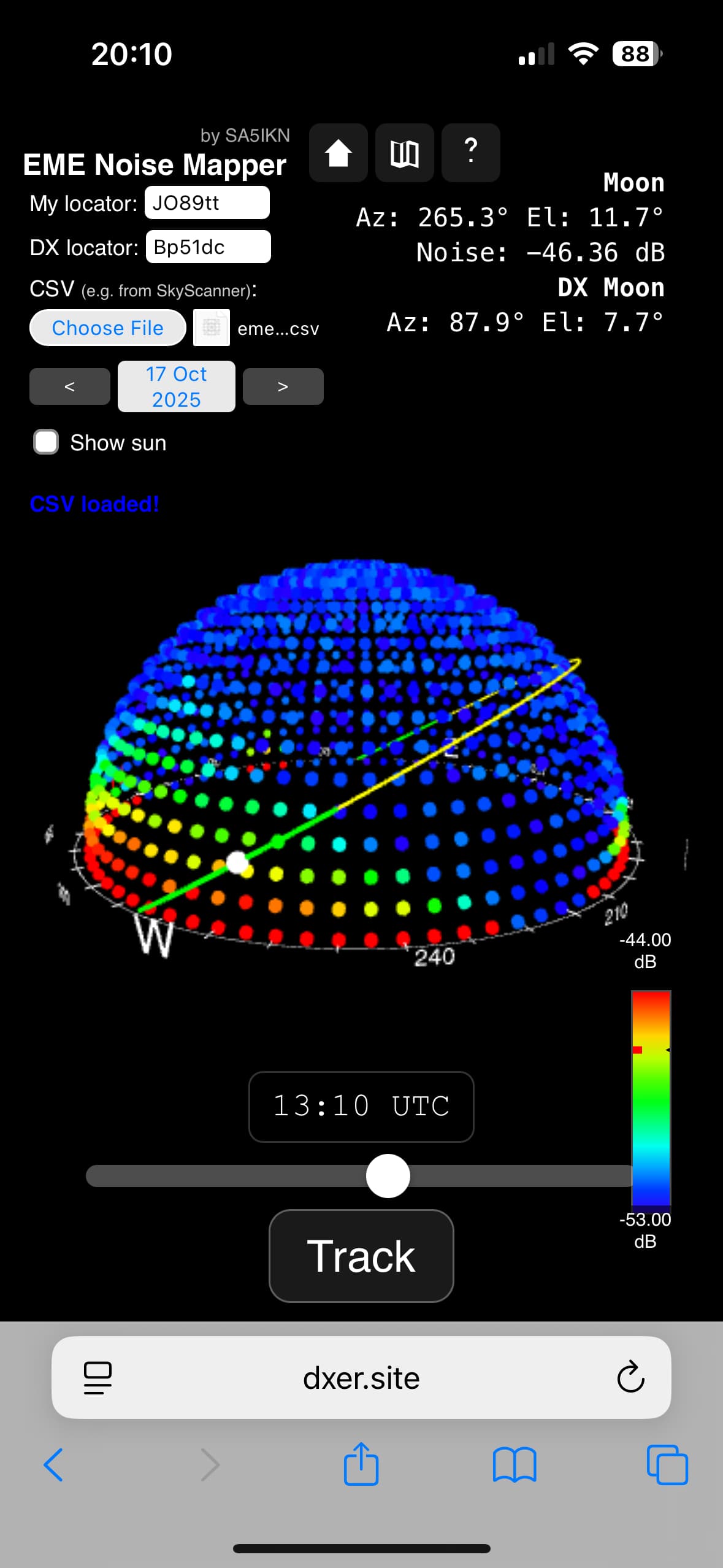
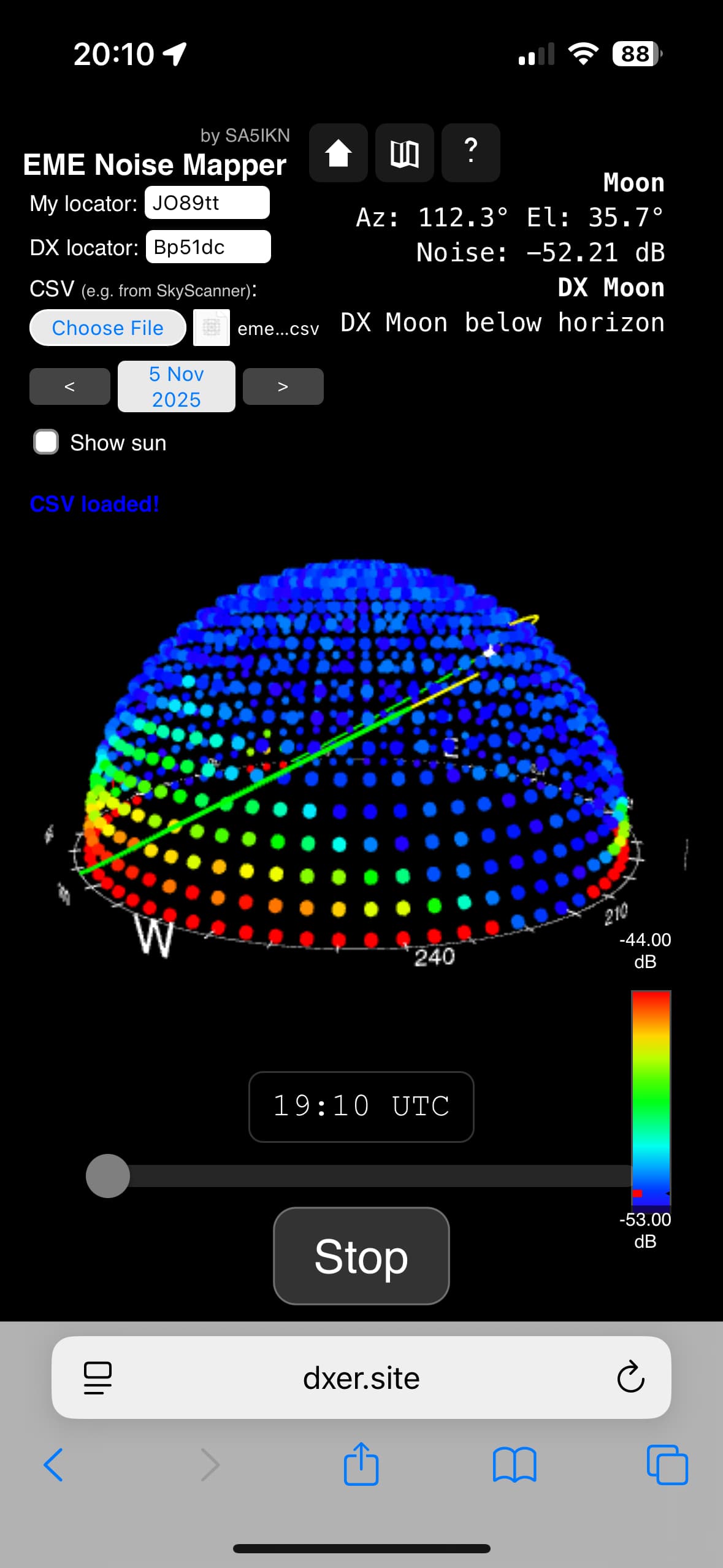
EME Noise Mapper features a responsive design optimized for mobile devices, presenting all essential data in a compact, touch-friendly layout. The screenshots below show the interface as displayed on an iPhone Pro.
Privacy and Data Storage
EME Noise Mapper respects your privacy and does not collect, transmit, or store any personal data on external servers.
The application uses your browser’s local storage solely to support essential functionality. Specifically, it stores:
- Your entered station locator (My Locator)
- The most recently loaded sky noise map (CSV file)
This data is stored only on your own device and is used to make it easier to resume work when you reopen the application. Without a loaded noise map, the application cannot function, which makes this storage necessary for normal operation.
EME Noise Mapper does not use cookies, does not perform any tracking, and does not transmit any data off your device. All processing happens locally in your browser.
Support EME Noise Mapper
If you enjoy using EME Noise Mapper and want to help cover website costs, you can contribute in one of these ways:
- PayPal (Friends & Family): Send your contribution directly to SA5IKN's email: shown on QRZ.com. Using Friends & Family avoids fees, so your full support goes to the project.
-
Ko-fi: Support via Ko-fi quickly and easily:
Current supporters:
- F6IJI
- I6YPK
- KG0D
Every contribution, big or small, helps keep EME Observer online and available for the community. Thank you for your support!
Licenses and Credits
EME Noise Mapper
© 2025-2026 Max Romensky (SA5IKN). All rights reserved.
This application incorporates the following third-party components:
- NASA JPL DE421 Ephemeris - Public domain data provided by NASA’s Jet Propulsion Laboratory.
- Skyfield © 2014-2025 Brandon Rhodes and contributors - Licensed under the MIT License.
- Astronomy Engine © 2019-2025 Don Cross - Licensed under the MIT License.